





My Coppercoins (MYC) is your private workspace on CopperCoins.com for logging die varieties you own, grouping them into personal sets, and printing formal reports. You need a free member account. Open it from the My Coppercoins link in the main site header or go directly to /my-coppercoins.
MYC is separate from the public catalog. Catalog search, the Date Guide, and saved catalog searches help you find dies in the master database. MYC stores your coins and your own saved collection searches.
Tabs at a glance
Dashboard
Snapshot of coins logged, set counts, insurable and market totals, and recent activity.
Coins
Add, edit, and review logged die varieties. Filter by personal set. Customize columns.
Sets
Create named groups, combine sets, link catalog search targets, and control public visibility.
Reports
Open printable insurable, market, and missing-coins reports.
Collection search
Search and save queries over your logged collection data.
Saved searches
Reopen catalog saved searches, print checklists, and build sets from catalog targets.
Coin serial numbers
Every coin receives a unique serial number such as CDC-00001.
- On your profile, choose coin initials (2–4 letters, unique on the site).
- Serial numbers are assigned when you add coins. After your first coin is logged, initials are locked.
- The Serial column on the Coins tab shows this number.
Learn as you go
Each MYC tab includes a collapsible How this tab works panel at the top with tab-specific instructions. This Help page collects the full guide in one place.
Privacy
- Cost paid, year purchased, location purchased, and private notes stay on your account only.
- Public visibility is controlled at the set level.
- MYC pages are not indexed by search engines.
Related guides
Dashboard
The Dashboard is your home screen when you open My Coppercoins. It summarizes what you have logged without opening each tab.
Stat cards
- Coins logged — total rows in your collection, with a note if you added coins in the last 30 days.
- Unique dies — how many different die numbers you own at least once.
- Personal sets — how many named sets you created, and how many are public.
- Insurable (cost paid) — sum of cost paid across all coins. Tap to open Reports.
- Market (guide value) — sum of catalog guide values for each coin’s logged grade.
- Saved searches — quick links to catalog and collection saved searches.
Largest sets & recent coins
When you have activity, the dashboard lists your largest sets and the most recently logged coins so you can jump back into work quickly.
Empty collection
If you have not logged any coins yet, use the links to the Coins tab or catalog search to add your first die variety.
Coins
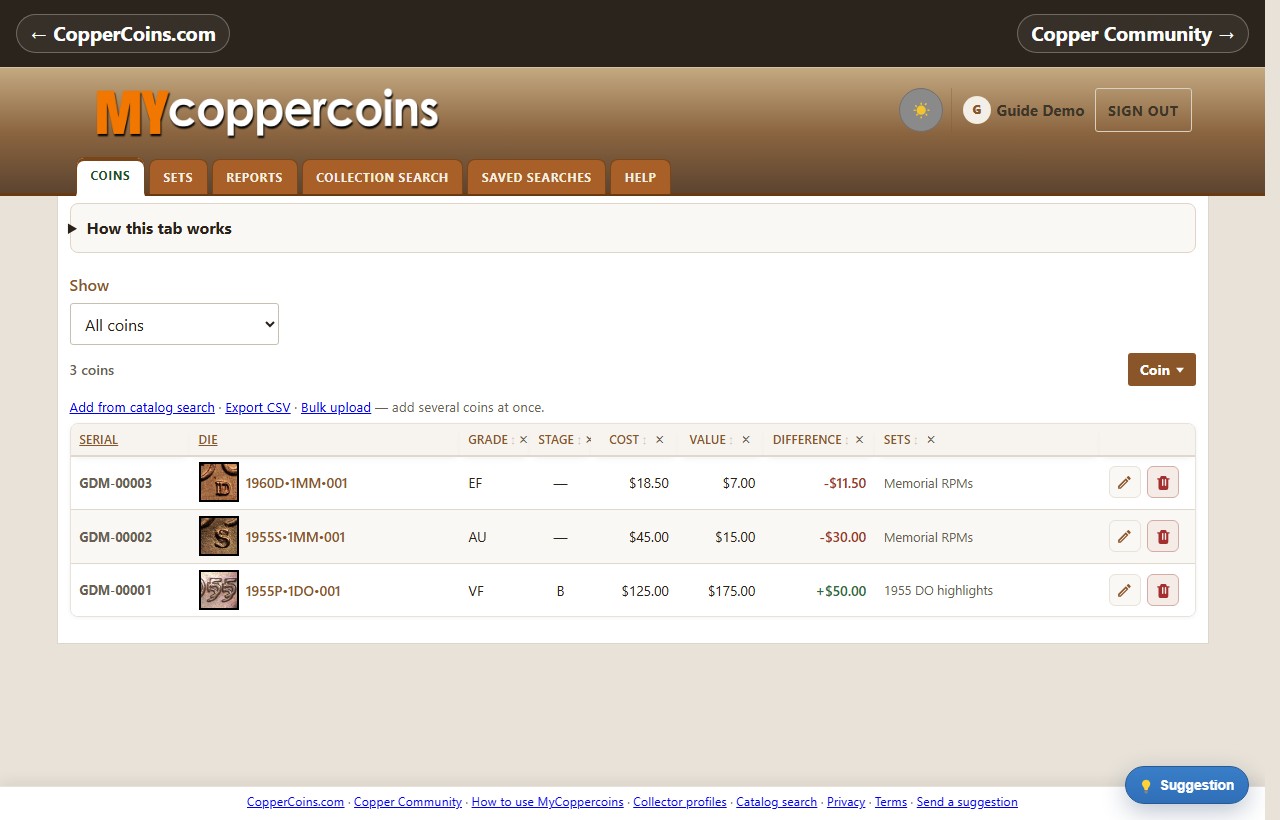
The Coins tab is your master list. Each row is one physical coin with its own serial number, grade, cost, and set assignments.
Add a coin
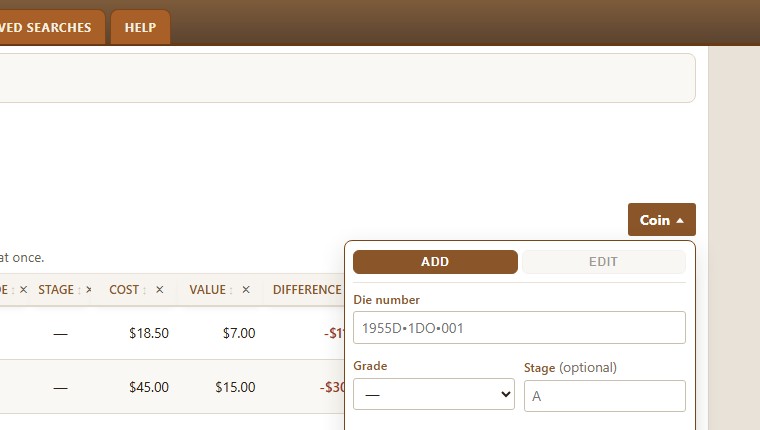
- Coin button on this tab — type the die number, grade, optional stage, cost, and notes.
- Catalog die page — Add to my collection while signed in.
- Add from catalog search — search the catalog, check several dies, and save in one step.
- Bulk upload — import many coins from a CSV spreadsheet.
Edit or delete
- Click the pencil icon on a row to open the Edit panel.
- Update grade, stage, cost, year purchased, location, notes, and set checkboxes.
- Use the trash icon or Delete coin in the edit panel to remove that row.
One row = one coin. Three examples of the same die means three separate rows.
Filter by set
Use the Show dropdown to list only coins assigned to one personal set.
Customize columns
Hide optional columns with × in the header. Hidden columns reappear as links above the table. Serial, Die, and actions always stay visible.
Bulk upload
- Set coin initials on your profile first.
- Download the CSV template from Bulk upload.
- Fill one row per coin (die_number required).
- Upload as CSV UTF-8 and confirm import.
Sets
Sets are named groups for your coins — like filing cabinets. A coin can belong to more than one set. New sets are private by default.

Create a set
Enter a name at the top of the Sets tab. Optionally link a catalog search target (a saved catalog search) to define every die the set should include.
Accordion list
All sets appear as a collapsed list. Expand a set to:
- Rename it and change public visibility or catalog search target, then Save set.
- See every coin already in the set with edit and delete actions.
- Open checklist links when a catalog search target is linked.
Combine sets into one
When you need to merge several sets, open Combine sets from the Sets tab. Pick two or more sets, name the new combined set, and save. All coins move into the new set and the old set names are removed. Coins stay in your collection.
Catalog search target
When a set has a catalog search target, you get:
- View checklist — printable full die list from the catalog.
- Add from checklist — log coins from that search, with coins already in the set marked so you do not duplicate.
- Missing coins — report of checklist dies you have not logged yet.
Public sets
Mark a set Public to share coins assigned to it on your collector profile. Others see die and grade only — never cost or notes.
Delete a set
Delete set opens two choices:
- Delete set only — coins stay in your collection.
- Delete set and all coins — permanently removes every coin in that set.
Reports
The Reports tab opens printable summaries in a new browser tab (print or save as PDF).

Insurable report
Sums cost paid for coins in the chosen scope. Use for insurance documentation based on what you paid.
Market report
Sums catalog guide values for each coin’s logged grade. Useful for comparing collection value to cost.
Missing coins report
Compares a set’s catalog search target to coins you have logged in that set. Lists dies you still need. Requires a set linked to a catalog saved search.
A ← My Coppercoins link on report pages returns you to your workspace.
Collection search
Collection search runs queries against coins you have already logged — not the public catalog.
Search your collection
Filter by die number, year, mint, die type, grade, cost, set membership, and more. Results show your logged coins with the same columns as the Coins tab.
Save a search
When you find a useful filter combination, save it with a name. Saved collection searches reappear on this tab for one-click reuse.
Collection search vs. saved searches
- Collection search (this tab) — your logged coins only.
- Saved searches (other tab) — saved filters on the master die catalog.
Do not confuse the two: collection search never adds new dies to the catalog; it only finds what you already own.
Saved searches
Saved searches (formerly catalog searches) stores filters you saved from the public die search. They search the master catalog — not your logged coins.
Run a saved search
Each row shows the search name, criteria summary, and date saved. Click Run search to reopen the catalog with those filters.
Print checklist
Print checklist opens a printable list of every die that matches the saved search. Useful for show tables or attribution goals.
Create a set from a search
Use Create set on a saved search row to make a new personal set with that search as its catalog search target. Then use Missing coins and Add from checklist on the Sets tab.
Email alerts
When you save a search from the catalog, you can opt in to email when catalog content matching that search changes.
Add many coins at once
From a set’s Add from checklist link, or from the Coins tab via Add from catalog search, check dies you own, enter grades and costs, and save a page at a time.
